Help Center
Installing XLSTAT 365 in Google Sheets
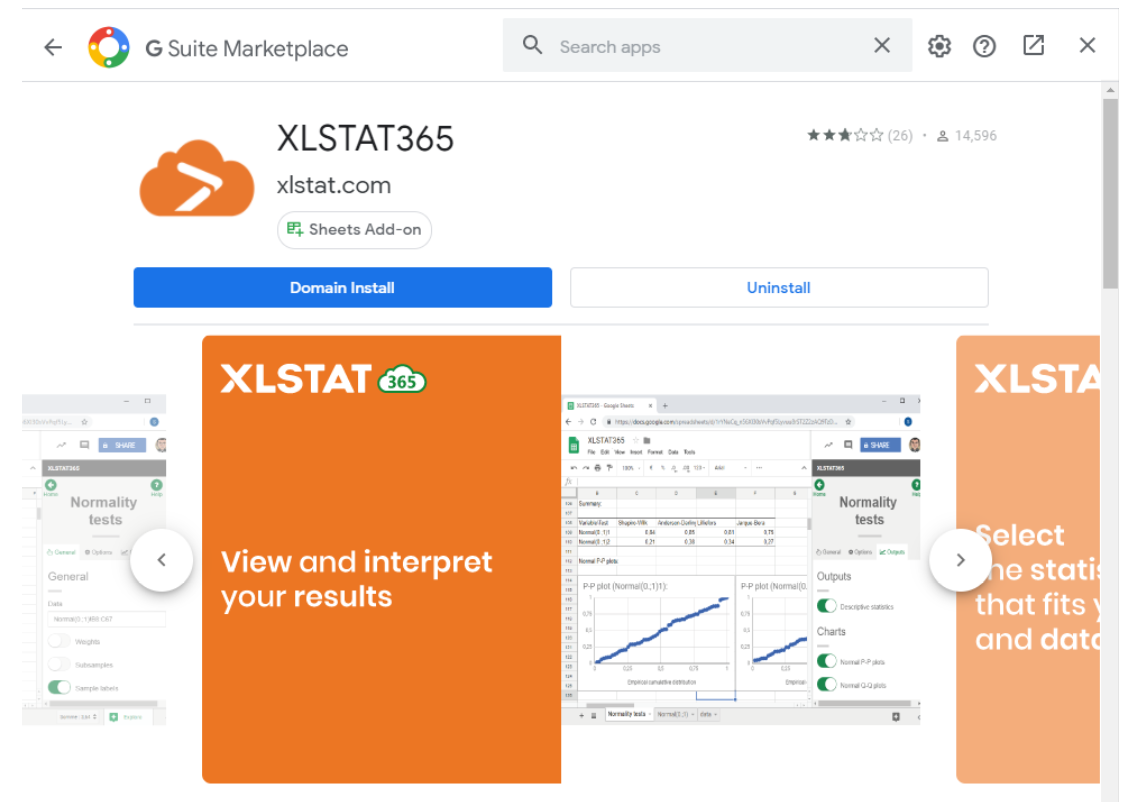
The Office XLSTAT 365 add-in is a user-friendly cloud-based application for statistics and data analysis.
To install XLSTAT 365 in Google Sheets, go to the following address: https://docs.google.com/spreadsheets/ and create a new spreadsheet.
Once the spreadsheet has been created, click Add-ons> Get add-ons. The purpose of this action is to open the Google add-on catalog.
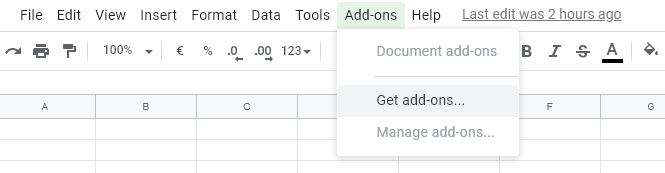 The window shown below should appear.
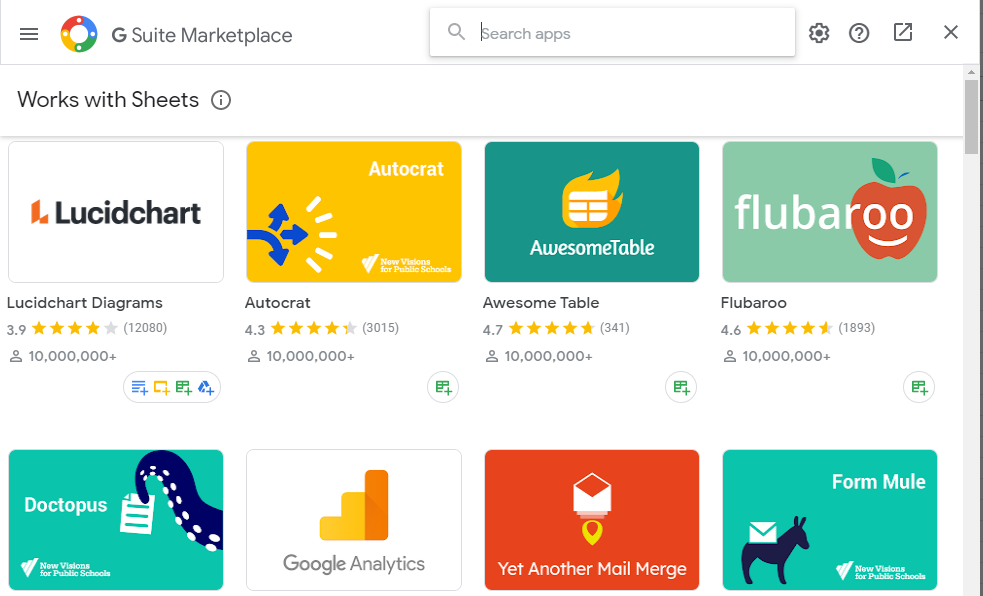
Enter "XLSTAT 365" in the search box which should allow you to find XLSTAT 365 in the catalog. Once found, click on the XLSTAT icon to install the application for free.
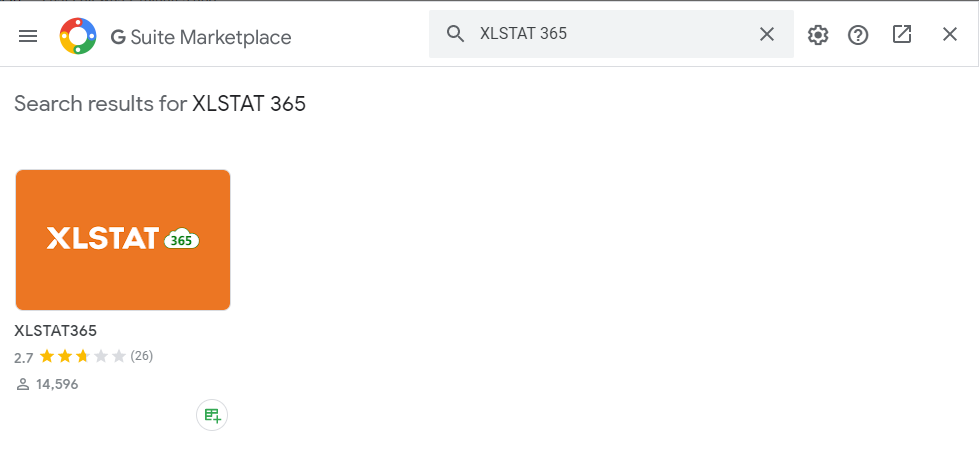
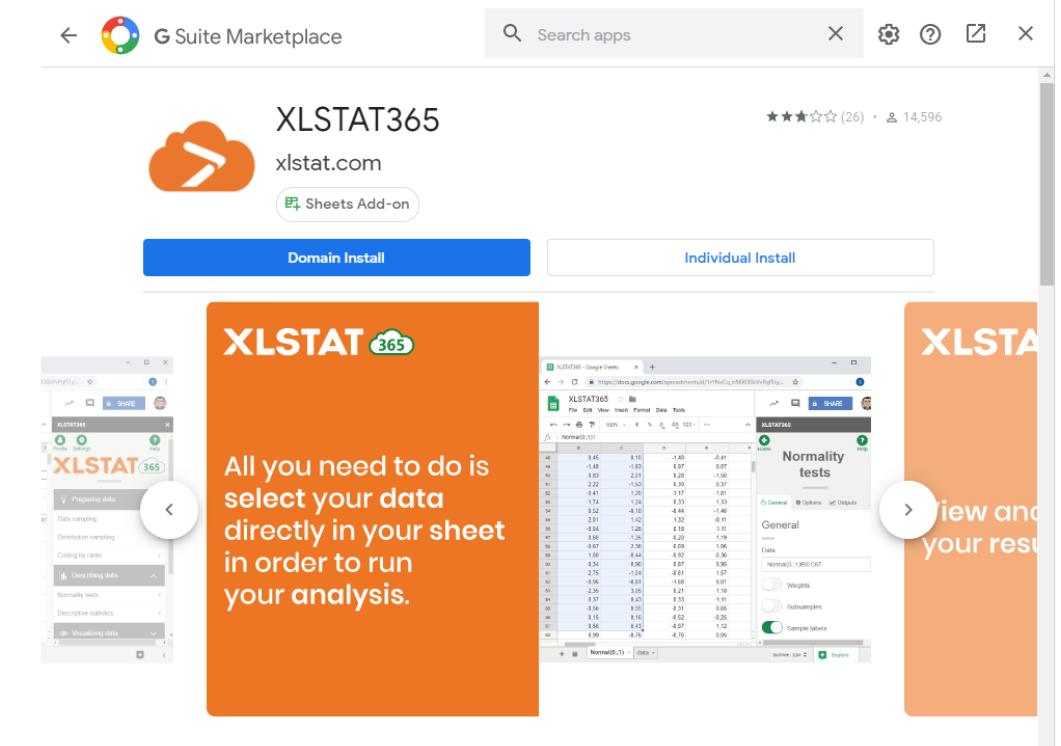
After clicking on the individual install button, a window opens asking you to choose a Google account to install the application. This first account selection just allows you to add a module, it does not manage the connection to the application.
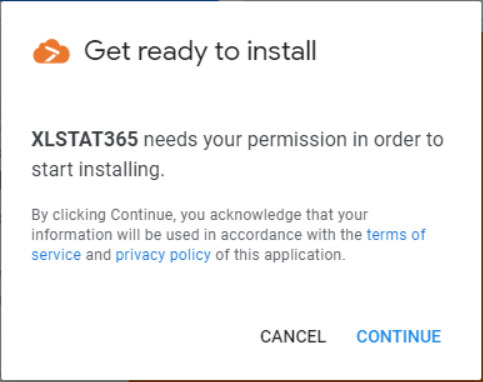
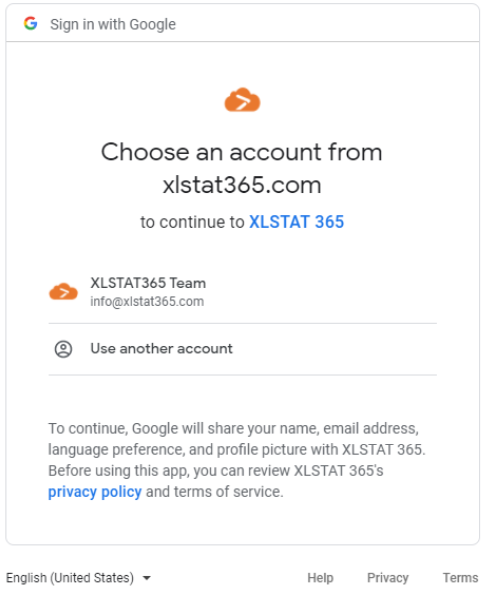
If you are connected to your browser with a Google account, it will be present in the black frame. You can either choose it or use another account.
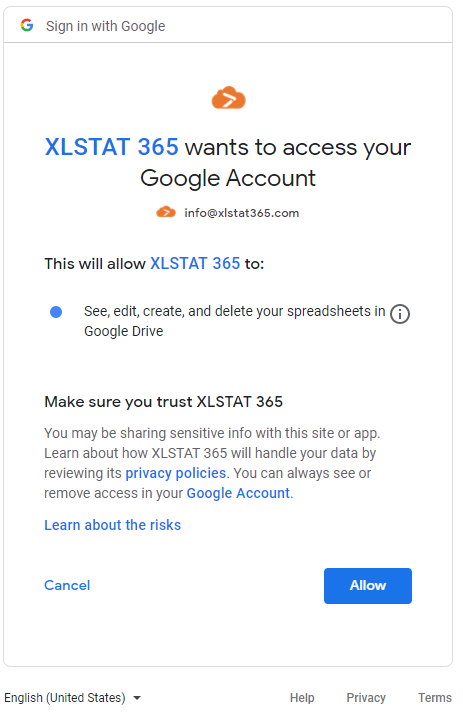
Once the account selected, the following window appears which presents the accesses that XLSTAT 365 has on your Google account.
It is clear that the application only needs to access what is necessary in order to be able to create and modify a spreadsheet within Google Drive. The last point related to web content displays the application in a sidebar on the right of the screen.
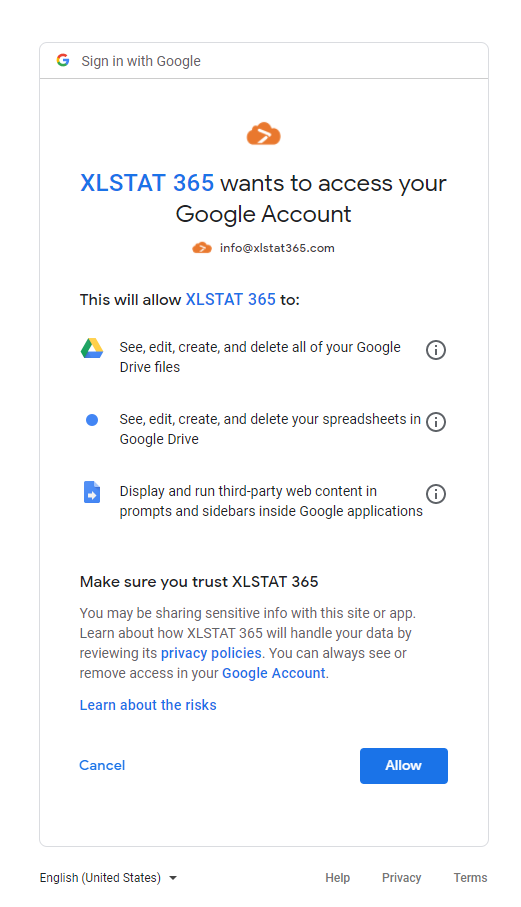
Click the Allow button to complete the installation.
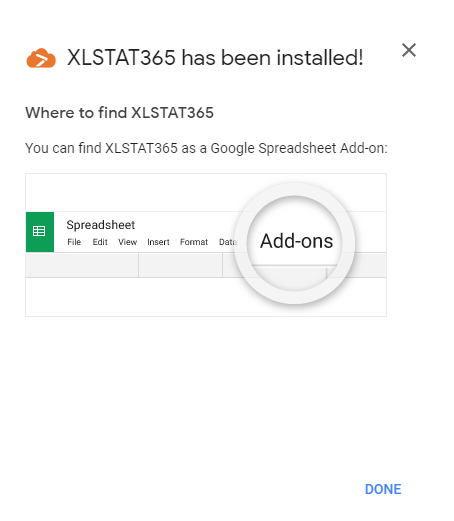
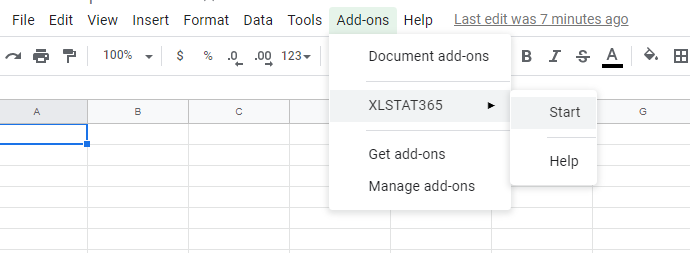
To launch the application, click on Add-ons and find XLSTAT 365 in the list of installed modules, then click on Start to start the application.
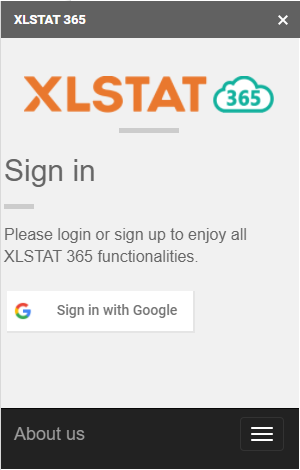
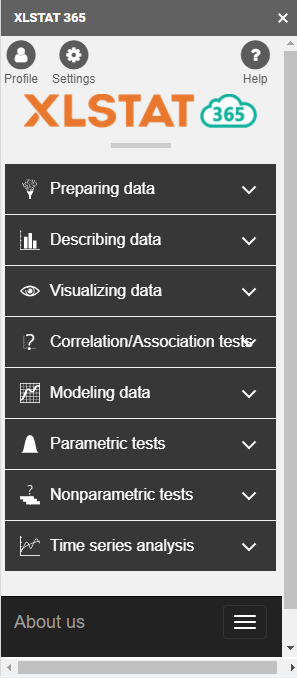
The application launches in a sidebar on the right of the screen. To be able to use XLSTAT 365 you have to connect with Google.
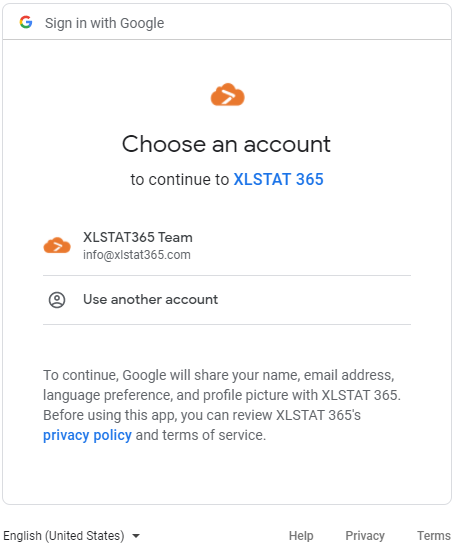
In the same way as before, you have to choose the Google account to connect to the application. Select the account you want to use or Use another account. This time, the account used will be the one to access and use the application. It may be different from the account used for installation.
After selecting the account, a page appears asking your autorisation for XLSTAT 365 to access the account used. Click the Allow button to finalise the connection.
Once the connection is established, the window disappears and you can take advantage of the XLSTAT 365 features offered!
Was this article useful?
- Yes
- No