Help Center
Get your Excel version
If you ever happen to experience a problem with XLSTAT, we would need to know precisely which version of Excel you are using.
This can be found easily, although the process to find this information is different on each Excel version. Here is a quick guide.
On Windows
This section is intended to Windows users. If you are using a Mac, jump to the second part of this document.
Excel 2013, 2016, 2019 (Office 365)
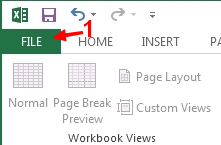
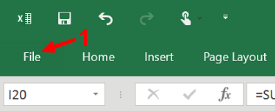
Start by clicking on the File button, on the top left corner of Excel.
| Excel 2013 | Excel 2016 |
|---|---|
 |
 |
Click on Account, on the left-hand side of the screen, then About Excel.
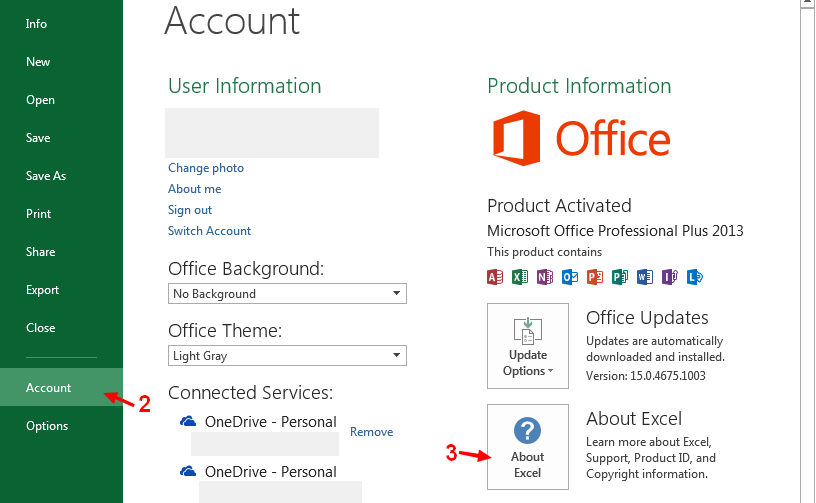
The version is visible in the first paragraph of the dialog box that appears.

Excel 2010
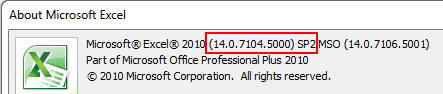
Click on File, on the top of the Excel window. Then choose Help. Click on the Additional Version and Copyright Information link.
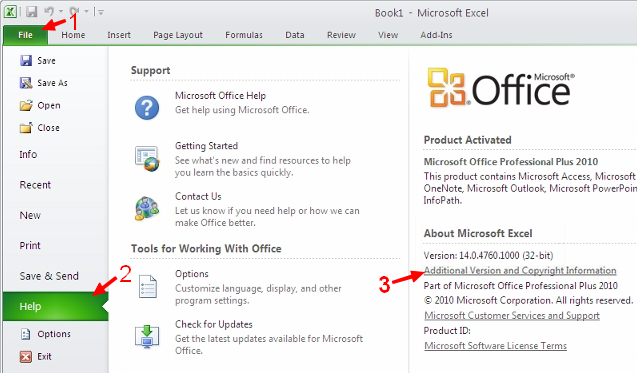
On this dialog, you should be able to retrieve the complete version number.
Excel 2007
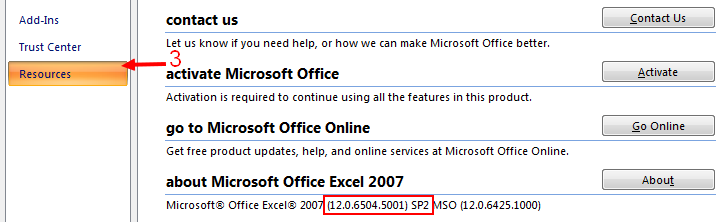
Click on the Office button then on the Excel Options button.

Select Resources in the left-hand pane. The Excel version should be displayed in the about Microsoft Excel 2007 section.
Excel 2003 and prior
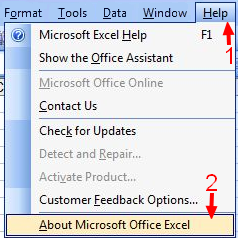
Select the Help menu then click on About Microsoft Office Excel.
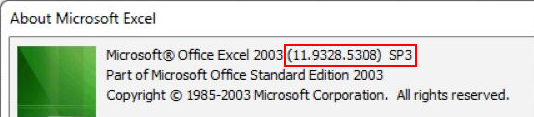
Please send us the version details that are displayed in the dialog box that appears.
On Mac
Excel 2011
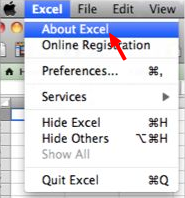
Open the Excel menu on your Mac Menu Bar. Click on About Excel.
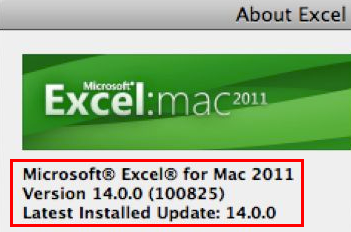
The version number should be displayed inside the dialog box.
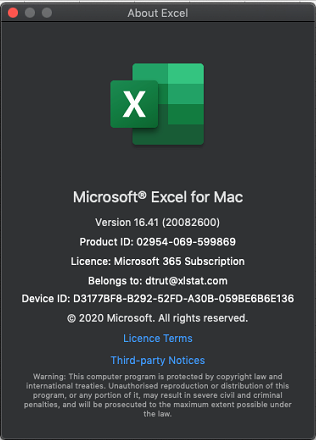
Excel 2016, 2019
The version number should be displayed inside the dialog box.
Was this article useful?
- Yes
- No