Help Center
Installing XLSTAT on Windows
You can follow this quick guide on how to install the XLSTAT software on Windows.
Before starting
To make sure your system meets all the requirements XLSTAT needs to work properly, please follow this quick guide here.
Downloading XLSTAT
You can download XLSTAT on the Free Trial page of our website. Please fill in the form and click on the appropriate download button.
Installing XLSTAT
Double-click on xlstat.exe.
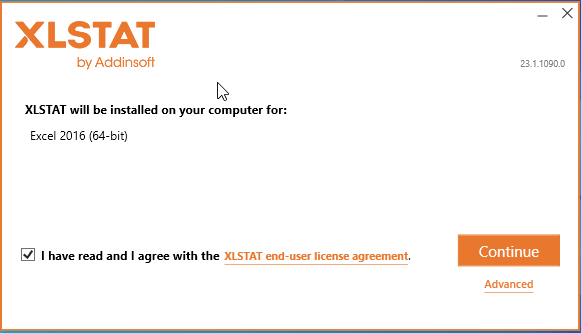
Here, the folder in which XLSTAT will be installed can be changed. In most cases, it is kept as it is. Accept the terms of the license agreement in order to continue.
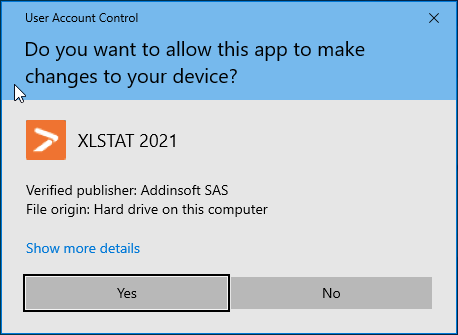
Upon clicking on Install, the dialog pictured below should appear. Give your authorization by clicking on Yes.
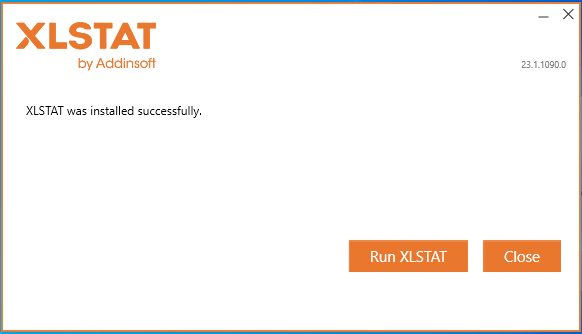
The installation may require a few minutes. After it finishes, you can choose to launch XLSTAT right away before exiting the wizard.
Updating XLSTAT
If you want to update your XLSTAT version, you just need to download and install the latest XLSTAT version. No need to uninstall your current version. See this tutorial for further instructions.
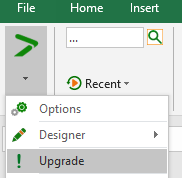
Alternatively, you can click on the Upgrade button through the XLSTAT menu.
Activating XLSTAT
If you have purchased an XLSTAT license, then follow this guide to activate your license key.
Activating the 14 days Free Trial
Please follow this guide to activate your Trial license key.
Was this article useful?
- Yes
- No