Help Center
Cleaning text data in Excel tutorial
This tutorial shows how to trim spaces from text data, correct space repetitions or replace a text by another in Excel using the XLSTAT software.
Dataset
An Excel sheet with both the data and the results can be downloaded above
The data set include two ordinal categorical variables representing the responses to a survey.
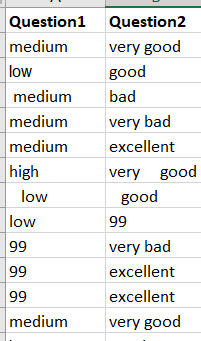 Our goal is to clean up the responses. We will use the Cleaning text XLSTAT tool to remove spaceS before, after or between words as well as to replace 99 by unknown.
Setting up a text data cleaning in XLSTAT
Select the Text Mining/Cleaning text data command in the XLSTAT menu:
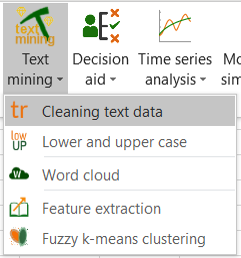 The Cleaning text data dialog box appears:
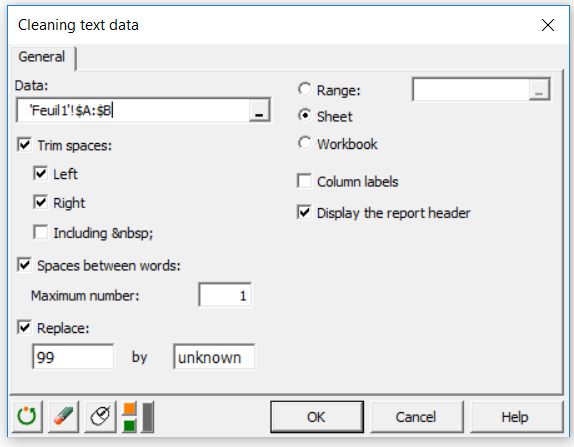 In the General tab, select columns A and D in the Data field. Set the maximum number of space between words to be equal to 1. Enter uknown to replace 99 values under the Replace field.
Click on the OK button to generate the output sheet.
Results of a text data cleaning
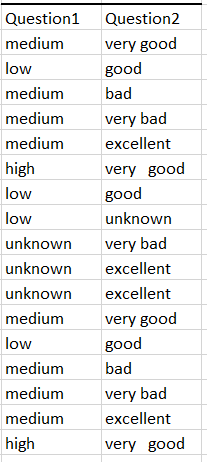
A new sheet, named Trim spaces, is displayed containing the clean text data (see below).
Was this article useful?
- Yes
- No